Metaessen Web Clipper
Metaessen Web Clipper can help you capture and save what you matter on web pages to Metaessen.

Save anything from the web
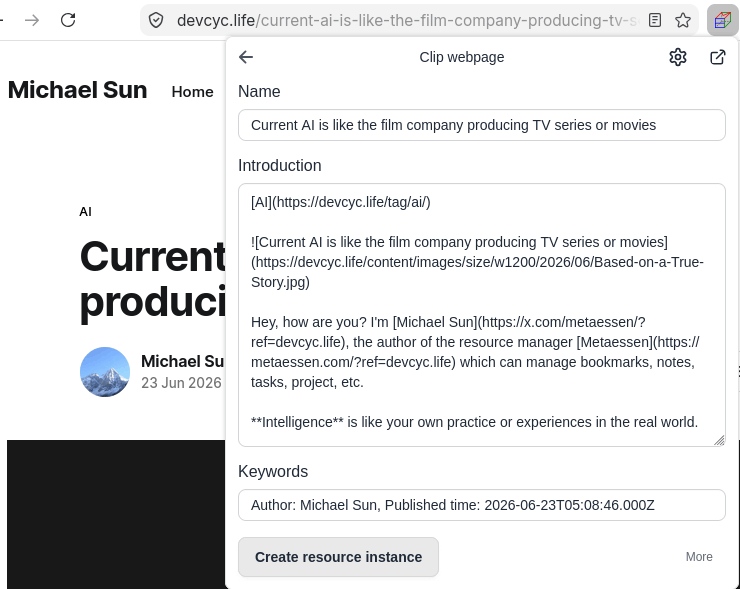
Save web pages in markdown format
Installation
Installation for Firefox browsers
You can install the web clipper from Firefox Addon Store for Firefox Desktop and Firefox Mobile.
Installation for Chromium-based browsers
For Chromium, Google Chrome, Brave, Arc, Orion, and other Chromium-based browsers.
You can download the web clipper from the server, then install it manually following the steps below:
-
Extract the ZIP File
-
Open the Extensions Page in Chrome
- Launch Chrome browser.
- Type
chrome://extensionsinto the address bar, then press Enter. - Alternatively, click the three vertical dots (menu) on the top-right corner, hover over Extensions, and select Manage Extensions.
-
Enable Developer Mode
- Look at the top-right corner of the Extensions page.
- Toggle the switch next to Developer mode to the On state.
-
Load the Unpacked Extension
-
Click the Load unpacked button that appears on the top-left corner.
-
In the file picker window, navigate to and select the extracted folder (the unzipped folder containing your extension files).
- Crucial: Ensure the folder you select contains the
manifest.jsonfile. Do not select the original ZIP file.
- Crucial: Ensure the folder you select contains the
-
Click Select Folder (or Open).
-
The extension is now installed and ready to use. You can pin it to your toolbar by clicking the puzzle piece icon next to your address bar.
Features
Get and save what you matter from the web into your own systems (knowledge system, social network, workflow, whatever).
-
Save web pages
Get and save articles, news, blogs, recipes, ideas, projects, products, etc. as long as you can access them on the web. Only save what you matter or the most important parts in order to keep content concise, remove the unnecessary, reduce cognitive load or administrative overhead, and make life be more easier.
-
Save bookmarks
Get and save bookmarks of the web pages you are accessing.
-
Organize and Tag
Organize what you are saving with systems (like folders in file system) in order to create your own systems. Describe or tag the more important parts of what you are saving with short keywords.
Specific features:
- Save entire pages or main contents, selected parts of web pages.
- Save bookmarks of web pages.
- Save contents in markdown or plain text format.
- Get contents from web pages according to the text format you selected.
- Keyboard shortcuts.
Usage
Setup
Setup REST API Token
-
Get
REST API Tokenfrom the websiteGo to the
Settingspage, then clickREST API, next create yourREST API Token. -
Click
Metaessen Web Clipperbutton on browser toolbar, then click theSettingsbutton, and copy the createdAPI Tokeninto the input boxAPI authentication token.
Setup default system and format
-
Open
Settingspage ofMetaessen Web ClipperClick
Metaessen Web Clipperbutton on browser toolbar, then click theSettingsbutton. -
Click
Editormenu item -
Change
Default systemThe value is like file system path, e.g. /a/b/c. If any system in the system path does not exist, the serivce will create it automatically.
This system (system path) will be used when you clipping webpages or bookmarks as resource instances.
-
Change
Default text format for clipping webpageorDefault text format for clipping bookmarkDefault value for
Default text format for clipping webpageisMarkdown.Default value for
Default text format for clipping bookmarkisPlain text.The value of format will be used when extracting content from webpages and displaying the content on
Metaessen manager.
Clip web pages
If you select a part of the web page, the clipper just extracts content of the selection.
If no selection, it extracts main content of the page.
-
Clip webpage as resource instance
Open the
Web Clipper, then click the buttonClip webpage as resource instance, and the clipper will extract the main content of the page or the selection of the page, and maybe you adjust the system or keywords, then clickCreate resource instance. -
Clip webpage as resource
Open the
Web Clipper, then click the buttonClip webpage as resource, and the clipper will extract the main content of the page or the selection of the page, and maybe you adjust the keywords, then clickCreate resource.
Clip bookmarks
-
Clip bookmark as resource instance
Open the
Web Clipper, then click the buttonClip bookmark as resource instance, and the clipper will extract the bookmark of the page, and maybe you adjust the system or keywords, then clickCreate resource instance. -
Clip bookmark as resource
Open the
Web Clipper, then click the buttonClip bookmark as resource, and the clipper will extract the bookmark of the page, and maybe you adjust the keywords, then clickCreate resource.
Keyboard shortcuts
It's very convenient to use keyboard shortcuts. If you press a keyboard shortcut, the corresponding page of the clipper will be displayed with the extracted content immediately.
The default keyboard shortcuts:
| Item | Keyboard shortcut | Recommend |
|---|---|---|
| Open Metaessen Web Clipper | Alt+Shift+M | |
| Clip webpage as resource instance | Alt+Shift+I | |
| Clip bookmark as resource instance | Alt+Shift+K | |
| Clip webpage as resource | Alt+Shift+O | |
| Clip bookmark as resource | Alt+Shift+L |
Miscellaneous
Copy system path from Metaessen manager
You maybe want to copy specific system or system path from Metaessen manager, and can do it as the following steps:
- Click the specific system or any child resource instance.
- Click
Copybutton of the fieldSystem pathof system viewer or resource instance viewer. - Paste the system path into the
Systemfield of any page of the web clipper.
Refresh system
You will want to see the clipped content on Metaessen manager after clipping a web page or bookmark.
You can do that as the followings:
-
Right click the corresponding system.
-
Select
Refreshmenu item from context menu.The refresh action can get latest system architecture of the root system (the corresponding system, descendant systems, and descendant resource instances).
Copy and Clear
Hover the pointer to the right corner of any data field of any page of the web clipper, then the Copy and Clear buttons will be displayed, and click them
to copy or clear text of the corresponding data field.
Open Metaessen manager
Click Goto button (next to the Settings button) on top bar of home page of the clipper to open the Metaessen manager.
Show / Hide fields
Click More or Less button to show or hide more data fields on any page of the clipper.
Security and Privacy
Metaessen Web Clipper sends extraced content to Metaessen server and follows our privacy policy.
We respect your privacy and data, the clipper just sends extracted content from web pages without other metadata.
We do not gather any usage metrics or collect other data except extracted content from the web pages.
We will do our best to keep your data safe in the process.